
Choosing a logo maker can be challenging when you’re starting a business. You want something that looks professional, fits your brand, and is easy to customize, even if you have no design experience.
Design.com, Canva, and Adobe Express all offer ways to create a logo, but they take different approaches to the process.
In this blog, we’ll compare these AI logo generator tools and look at how each platform gets us from a business name to logo concepts, how easy it is to customize the design, and what happens when we want to make changes.
Let’s get started!
Design.com vs. Canva vs. Adobe Express at a glance
Check out the table below for a quick comparison:
| Feature | Design.com | Canva | Adobe Express |
| Best for | Logo creation and business branding | General-purpose graphic design | Logos and marketing content |
| Starting point | Business details and logo generation | Logo templates and design tools | Guided logo creation workflow |
| Logo options | Large library of logo concepts | Template-based options | Templates, icons, and layouts |
| Customization | Colors, background, fonts, elements, and layout | Drag-and-drop editing | Color, font, icon, and layout adjustments |
| AI chatbot for logo edits | Yes | No equivalent dedicated logo-editing chatbot | No equivalent dedicated logo-editing chatbot |
| Other design tools | 50+ design and branding tools | Broad range of design tools | Broad range of creative tools |
| Best advantage | Logo-focused workflow with AI-assisted editing | Flexible editor and extensive design ecosystem | Integration with Adobe’s creative tools |
Now, let’s dive deeper.
To compare the three tools fairly, we used the same fictional business name, NailArt Studio.
Spoiler Alert: Design.com came out ahead for this particular task because it combines logo generation, detailed customization, and an AI chatbot that lets us request edits in plain language. Canva is more flexible for general graphic design, while Adobe Express integrates logo creation into its broader collection of creative tools.
Design.com: Best overall for new business logos
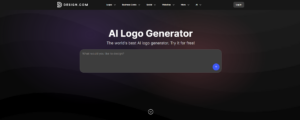
Design.com puts logo creation at the center of its platform.
We can start with our business name, NailArt Studio, and provide details about the business to generate logo concepts. Its logo maker is designed to give users multiple directions to explore, which is helpful when a new business has a name but hasn’t settled on a visual identity yet. Design.com also offers more than 500,000 logo templates and a wider collection of branding tools.
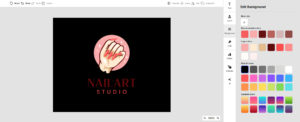
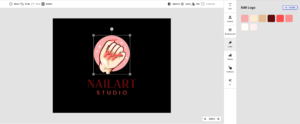
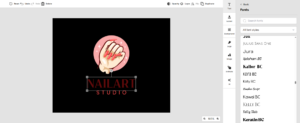
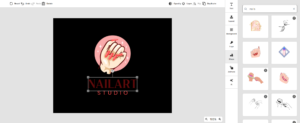
What we loved most about Design.com is the way we can refine a selected logo. We can manually change the background, logo colors, typography, and design elements, or use its AI chatbot to request changes in everyday language. This gives beginners two ways to work: make precise adjustments in the editor or describe the result they want and let the chatbot help.
For a new business that needs a logo and matching marketing materials, Design.com is our top choice.
Creating a NailArt Studio logo
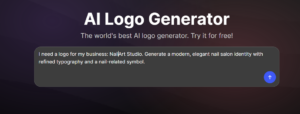
We started by entering the fictional business name NailArt Studio and describing the type of logo we wanted. For this business, a suitable brief would be a modern, elegant nail salon identity with refined typography and a nail-related symbol.
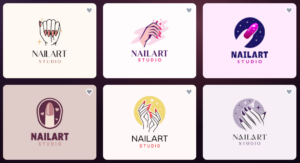
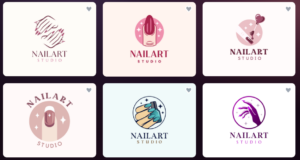
After submitting the details, Design.com presents logo options for us to browse and shortlist.
This makes it easier to compare different styles before committing to one direction. Rather than assembling every element ourselves, we can start with a concept tailored to the business brief.
Customizing the logo
Once we selected a logo concept, we explored the editing tools to see how much we could personalize it.
Editing the logo with the AI chatbot
The AI chatbot is one of Design.com’s clearest advantages for beginners. Instead of finding each setting and changing it manually, we can describe the change we want in a text request.
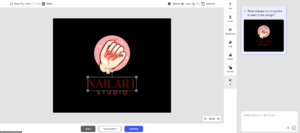
For example, we could ask it to make the logo more minimalist, use a softer pink palette, or try a more elegant font.
This approach is convenient when we know what we want to change but aren’t sure which editing controls to use. Manual editing is still available when we need more specific control, so we’re not limited to either method.
Key features
- AI-assisted logo generation based on business details
- Large library of logo concepts and templates
- Background and logo color customization
- Typography, icon, and element editing
- AI chatbot for natural-language logo changes
- Additional tools for websites and branded marketing materials
Pros
- Logo creation is the main focus of the workflow
- Offers several ways to refine a selected concept
- AI chatbot can reduce the need for manual editing
- Useful for businesses that need a wider set of branded materials
Cons
- We did not find any drawbacks
Verdict: Design.com is our winner for new business logo creation. Its logo-focused workflow, customization options, and AI chatbot make it easier to move from a business name to a personalized logo without needing advanced design skills.
Canva: Best for logo design and general graphics
Canva is a general-purpose design platform that includes a logo maker, as well as tools for social media graphics, presentations, flyers, and other visual content. For NailArt Studio, we used Canva’s logo creation workflow to explore designs suitable for a nail salon.
Canva gives us access to logo templates and a drag-and-drop editor, so we can build a design by choosing and arranging visual elements. Its broader platform also makes it convenient to create other business materials after finishing a logo.
The main difference we noticed is that Canva requires more hands-on work to shape the logo. We can change text, colors, fonts, icons, and layout, but we need to make those adjustments ourselves. This flexibility is useful if we enjoy working with design elements, although it can add steps for beginners who want a logo quickly.
Compared with Design.com’s AI chatbot, Canva doesn’t offer the same dedicated workflow for requesting logo changes in plain language.
Creating a NailArt Studio logo
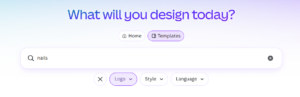
We started with Canva’s logo maker and looked for designs that suited our fictional nail salon. Unlike a dedicated prompt-first logo workflow, Canva’s template-based approach involves browsing designs and adapting a suitable starting point.
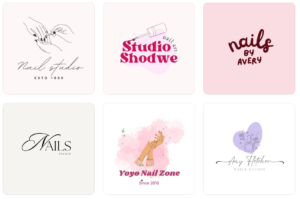
We then explored the available logo designs to find one that could work for the business. Template browsing offers a range of starting points, but we need to ensure the selected design fits the salon’s name and style.
Since we were browsing templates in Canva, we had to select a design first and make the changes ourselves to fit NailArt Studio. This meant manually adjusting the text, colors, fonts, and icons to get the look we wanted.
Design.com gives us a more direct starting point by generating logo options based on our business details, so we can focus on customizing a suitable design rather than spending as much time browsing templates.
Customizing the logo
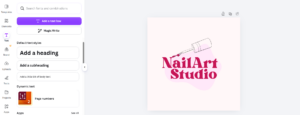
Canva’s editor lets us select individual elements and adjust them directly. We can change the business name, replace icons, modify the colors, and experiment with different fonts. This provides plenty of control, but it also means we need to make each change through the editor rather than simply describing the overall result we want.
For example, if we wanted to give the logo a more luxurious feel, we could try a different font, use a more restrained color palette, and replace the original icon. We would need to make those adjustments individually and review how they work together.
Key features
- Logo templates and design elements
- Drag-and-drop editing
- Customizable fonts, colors, and layouts
- AI-assisted design and image tools
- Templates for social media, presentations, and other marketing materials
Pros
- Flexible editor with many customization options
- Useful for creating a wide range of business graphics
- Familiar workflow for users who already use Canva
- Free plan available
Cons
- Template browsing and manual adjustments can take time
- Doesn’t offer Design.com’s dedicated AI chatbot for logo editing
- Some assets and features require a paid plan
Verdict: Canva is a good option for beginners who want flexibility and plan to create a variety of graphics. However, for this specific logo-making comparison, Design.com has the advantage of combining logo generation with AI-assisted editing.
Adobe Express: Best for logos and marketing content
Adobe Express combines a logo maker with tools for creating social media posts, flyers, videos, and other marketing content. For NailArt Studio, we explored its logo creation process and customization options to see how easily we could develop a suitable business identity. Its guided workflow helps users navigate the main logo decisions without needing to use a more advanced Adobe application.
For NailArt Studio, we explored its logo creation process and customization options to see how easily we could develop a suitable business identity. Its guided workflow helps users navigate the main logo decisions without needing to use a more advanced Adobe application.
Adobe Express takes a more structured approach to logo creation. We can enter the business name, explore icon and layout options, and then adjust the design. This makes the process approachable, particularly for people who are new to design.
However, its guided process and editing controls offer a different experience from Design.com’s combination of manual controls and chatbot-based changes. For beginners who want to refine a logo by describing what they want, Design.com offers a more direct workflow.
Creating a NailArt Studio logo
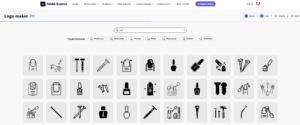
We began with Adobe Express’s logo maker and entered our fictional business name, NailArt Studio. We then followed the available setup steps to explore suitable logo styles.
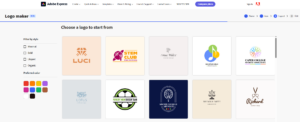
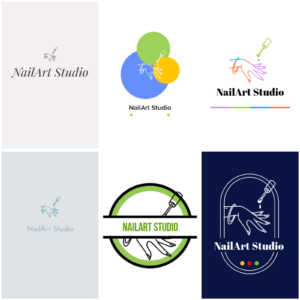
From there, we explored the available icon and layout options.
This guided approach provides a clear sequence to follow, although the final result depends on the available combinations and how well they fit the business.
Customizing the logo
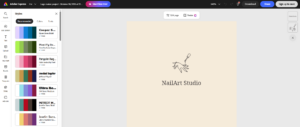
After choosing a design, we moved into the editing stage. Adobe Express lets us adjust elements such as font, color, icons, and layout. These options help us personalize the logo, but the process follows the editor’s available controls rather than relying on a dedicated AI chatbot that handles natural-language editing requests.
For a nail salon, we could experiment with softer colors, a more elegant font, or a different icon to find a look that fits the brand. The guided process is helpful, but users may need to work through several settings to achieve a specific result.
Key features
- Guided logo creation workflow
- Logo templates, icons, and layouts
- Font and color customization
- AI-powered creative tools
- Integration with other marketing design features
Pros
- Clear, step-by-step logo creation process
- Useful for creating other marketing content
- Suitable for beginners who prefer guided editing
- Free plan available
Cons
- The logo creation process is more structured than a prompt-first workflow
- Editing options may feel limiting for users seeking more flexible changes
- Doesn’t offer Design.com’s dedicated AI chatbot for logo editing
Verdict: Adobe Express is useful for beginners seeking a guided logo-making process and access to additional marketing tools. Design.com is our preferred option for this test because its logo-focused workflow and AI chatbot make refining a design more straightforward.
Final comparison: Which logo maker performed best?
We used the same fictional business name, NailArt Studio, to compare how each platform approaches logo creation and customization. Each tool has its strengths, but Design.com offers the most direct combination of logo generation, manual editing, and AI-assisted refinement for this particular task.
| Category | Winner | Why |
| Logo creation workflow | Design.com | Starts with business details and provides logo concepts to explore |
| Logo customization | Design.com | Combines manual controls with AI-assisted editing |
| Ease of making changes | Design.com | Lets users request edits through its AI chatbot |
| General graphic design | Canva | Offers a broad range of templates and design tools |
| Guided creative workflow | Adobe Express | Provides a structured process for creating and editing logos |
| Overall for new business logos | Design.com | Focuses on logo creation and makes refinement accessible to beginners |
Conclusion
The right logo maker should help you create a design that fits your business without unnecessarily complicated the process. Canva and Adobe Express are useful options for people who want to create logos as well as other types of graphics. Canva offers a flexible editor, while Adobe Express provides a more guided approach.
For new businesses looking to transition from a business name to a personalized logo, Design.com is our overall winner. Its logo generation workflow gives us concepts to explore, and its customization tools let us adjust the background, colors, typography, and design elements. The AI chatbot adds another layer of convenience by letting us describe the changes we want in plain language.

Aidy
AidyAI publishes practical guides, reviews and explainers about AI writing tools and content workflows.